
5 Terraform Workspace Commands Production Engineers Should Script in CI
For production engineers: five Terraform workspace CLI commands, CI checks to stop applying to the wrong workspace, and a pre apply checklist.

Terraform workspaces are named state partitions that let one configuration manage multiple isolated state instances. Terraform workspaces explained simply: they’re a way to reuse the same .tf files for several near-identical environments without copying code. Use them when your dev, staging, and prod stacks are structurally the same and you just need parallel state files. Skip them the moment isolation, credentials, or access control actually matter.
TL;DR:
- CLI workspaces are just state partitions within a single directory and do not provide any separation of credentials or access control, making them unsuitable for environments with strict isolation needs.
- Using
terraform workspace selectincorrectly or failing to verify the active workspace with scripts can lead to applying changes in the wrong environment, especially in CI pipelines.- Remote backends share state lock providers and credentials across workspaces, so heavy use or misconfiguration can cause slowdowns and expose secrets unintentionally.
- Directory-based environments offer better isolation and visibility but less convenience and speed compared to workspaces, which excel for quick, identical environment setups.
- HCP Terraform workspaces extend CLI workspaces with built-in policy enforcement, role-based permissions, and operational tracking, making them preferable for production-scale or security-sensitive setups.
Table of Contents
- What Is a Terraform Workspace, Really?
- How Do You Actually Use Terraform Workspaces?
- How Workspaces Connect to State Files and Backends
- Workspaces vs. Separate Directories: Which Wins?
- Terraform Workspace Best Practices That Actually Hold Up
- When You Should Not Use CLI Workspaces
- Why Trust This Terraform Workspace Breakdown
- Beyond CLI Workspaces: What HCP Terraform Adds
- Fixing the Terraform Workspace Errors You’ll Actually Hit
- What Most Terraform Advice Gets Wrong About Workspaces
- Sources
- FAQ
What Is a Terraform Workspace, Really?
I’ve watched engineers confuse two completely different things that happen to share a name, so let’s separate them immediately. A CLI workspace is a named partition of state data inside a single working directory. It’s a feature built into the Terraform CLI that lets you run terraform apply against the same configuration multiple times, each time writing to its own state file, without touching your code.
An HCP Terraform workspace (formerly Terraform Cloud) is a much bigger concept. It bundles a configuration, its variables, run history, policy checks, and access controls into a single governed unit. Treating these as interchangeable is where a lot of “workspace confusion” articles go wrong. They solve different problems at different layers.
A few things stay constant across both:
- Every working directory starts with a workspace named
default, and you can’t delete or rename it. - CLI workspace state for local backends lives in a
terraform.tfstate.ddirectory, one subfolder per named workspace. - Remote backends that support CLI workspaces (S3, Azure Blob, GCS, and others) store each workspace as a separate state object under the same backend configuration.
- The workspace name itself is tracked locally in
.terraform, which is typically excluded from version control, so teammates can sit on different workspaces without stepping on each other’s checked-in state.
Understanding Terraform workspaces starts with that distinction: CLI workspaces are a state-partitioning trick, not a governance system.
How Do You Actually Use Terraform Workspaces?
The command set is small, which is part of the appeal. Here’s the full toolkit:
terraform workspace listshows every workspace in the current backend and marks the active one with an asterisk.terraform workspace new <name>creates a workspace and switches to it immediately, starting from a blank state.terraform workspace select <name>switches your CLI context to an existing workspace without creating anything.terraform workspace showprints just the current workspace name, which is the command you want in scripts and CI logs.terraform workspace delete <name>removes a workspace, but Terraform will refuse if that workspace’s state still has resources tracked in it.
A typical flow looks like this: terraform workspace new dev, then terraform plan, then terraform apply. When you’re done testing, terraform destroy first, then switch away from dev before running terraform workspace delete dev — Terraform won’t let you delete the workspace you’re currently sitting in any way.
Inside your configuration, you can reference the active workspace directly with the ${terraform.workspace} interpolation, which is handy for tagging resources or sizing instances differently per environment without maintaining separate .tfvars files for everything.
The real risk isn’t the commands. It’s running apply against the wrong workspace because your terminal still has yesterday’s context loaded. Build a CI step that runs terraform workspace show and fails the pipeline if the output doesn’t match an expected value before any plan or apply executes. Our guide on running Terraform safely in CI/CD pipelines walks through the gating logic in more detail.
Pro Tip: Never trust a human to remember which workspace they’re on. Script the check. A single if [ "$(terraform workspace show)" != "$EXPECTED_WORKSPACE" ]; then exit 1; fi line in your pipeline has saved more production applies than any amount of documentation.
How Workspaces Connect to State Files and Backends
Switching workspaces doesn’t change your code. It changes which state file Terraform reads and writes. For a local backend, that means Terraform reads terraform.tfstate when you’re on default, and terraform.tfstate.d/<workspace>/terraform.tfstate for anything else. Named workspaces are, mechanically speaking, renamed state files sitting in a predictable directory structure.
Remote backends behave the same way conceptually. If your backend supports CLI workspaces, each one gets its own state instance under the same backend configuration, the same credentials, and the same lock mechanism.
That last part matters more than most tutorials let on:
- All workspaces under one backend share the same state lock provider, so heavy concurrent use across workspaces can queue up plan and apply runs.
- Because backend credentials are shared, a secret baked into one workspace’s variables is reachable by anyone with access to the backend, not just people working in that specific workspace.
- If your backend enforces naming restrictions (some object storage backends do), keep workspace names URL-safe and lowercase to avoid obscure path errors.
HCP Terraform’s guidance on this is blunt: workspaces should be scoped by blast radius and volatility, not convenience. A database workspace and a stateless compute workspace have very different risk profiles, and lumping them together because “it’s one app” is how a bad terraform destroy takes down more than intended.
Workspaces vs. Separate Directories: Which Wins?
Neither approach wins outright. They trade different risks for different conveniences, and the right call depends on how different your environments actually are.
Directories give you real isolation. Each environment gets its own state, its own backend configuration, its own credentials if you want them, and its own Git history that reflects exactly what’s deployed where. That last point is underrated: workspaces are invisible in your repository structure, so anyone reading the code has no way to tell how many environments exist or what’s running in each. That visibility gap is a documented complaint among practitioners, and it’s a real maintenance risk on teams with turnover.
Workspaces win on speed and DRY code. One set of .tf files, one CI pipeline definition, minimal duplication. For prototypes, feature-branch sandboxes, or environments that are genuinely identical apart from sizing, workspaces cut a lot of busywork.
Here’s how the trade-offs break down:
- Isolation: directories win decisively, especially for credentials and blast radius.
- CI/CD simplicity: workspaces win, since one pipeline definition handles every environment.
- Code duplication: workspaces win, though heavy use of conditional logic inside a single file raises the odds that a typo affects multiple environments at once.
- Visibility and auditability: directories win, because the repo structure matches deployed reality.
Most mature teams land on a hybrid: separate directories for major tiers like dev, staging, and prod where credentials and ownership genuinely differ, with workspaces used inside a tier for smaller variations like regional deployments or feature flags. Our breakdown of workspaces versus directories covers specific team sizes where each pattern held up and where it broke down.
Terraform Workspace Best Practices That Actually Hold Up
Most workspace incidents trace back to sloppy naming and unclear ownership, not the tool itself. A few rules fix most of it:
- Name workspaces with a consistent schema. Something like
component-environment-region(billing-prod-us-east) beats ad hoc names likeprod2ortest-final, which inevitably confuse the next engineer. - Group by volatility and statefulness. Keep databases and other long-lived resources in workspaces separate from compute that changes weekly. Mixing them means a routine compute change carries the same review weight as a schema migration.
- Delegate permissions deliberately. If your backend or platform supports scoped access, restrict who can run applies against production-tagged workspaces specifically, not just “anyone on the infra team.”
- Build CI checks that verify the target workspace explicitly, and require a second reviewer on any pipeline run touching a production workspace.
HCP Terraform’s own best-practice documentation echoes this: one workspace per environment per configuration, scoped tightly enough that a single bad apply can’t cascade across unrelated systems.
Pro Tip: If you can’t explain your workspace naming scheme to a new hire in one sentence, it’s not a scheme, it’s a guess. Write it down in your repo’s README, not just in someone’s head.
When You Should Not Use CLI Workspaces
CLI workspaces are not an access-control boundary. They share one backend configuration and one set of credentials, which means HashiCorp explicitly recommends against them for deployments that need separate security policies, separate secrets, or strong isolation between environments.
Watch for these failure patterns:
- Applying to the wrong workspace because a terminal session was stale — the single most common incident we see.
- Unexpected resource counts in
terraform planoutput because a variable wasn’t scoped correctly per workspace. - Slow plans and heavy agent resource use as configurations grow, since large dependency graphs strain a single workspace’s scope.
If you’ve already hit one of these, the recovery path is usually: switch to the correct workspace before any destroy, use terraform state mv to relocate resources between states cleanly, and migrate to fully separate backends when a workspace has clearly outgrown CLI-level isolation. Our audit guide for workspace state isolation covers the diagnostic steps in more detail.
Why Trust This Terraform Workspace Breakdown
This guide was written by James for a platform that builds prompt libraries, incident-triage tools, and hands-on automation guides for engineers running Terraform, Kubernetes, and OpenStack in production. The recommendations here reflect patterns pulled directly from HashiCorp’s own CLI and Cloud documentation, not secondhand summaries.
If you want a structured path into Terraform beyond workspaces, our guide to learning Terraform for real infrastructure is a solid next stop. And if you’d rather have someone check your existing setup for workspace-related risk before it becomes an incident, that’s exactly what a Terraform / IaC audit is for.
Quick pre-apply checklist worth pinning above your desk: confirm the active workspace with terraform workspace show, check that your CI pipeline gates on that value, and know before you touch production which backend and credentials that workspace actually points to.
Beyond CLI Workspaces: What HCP Terraform Adds
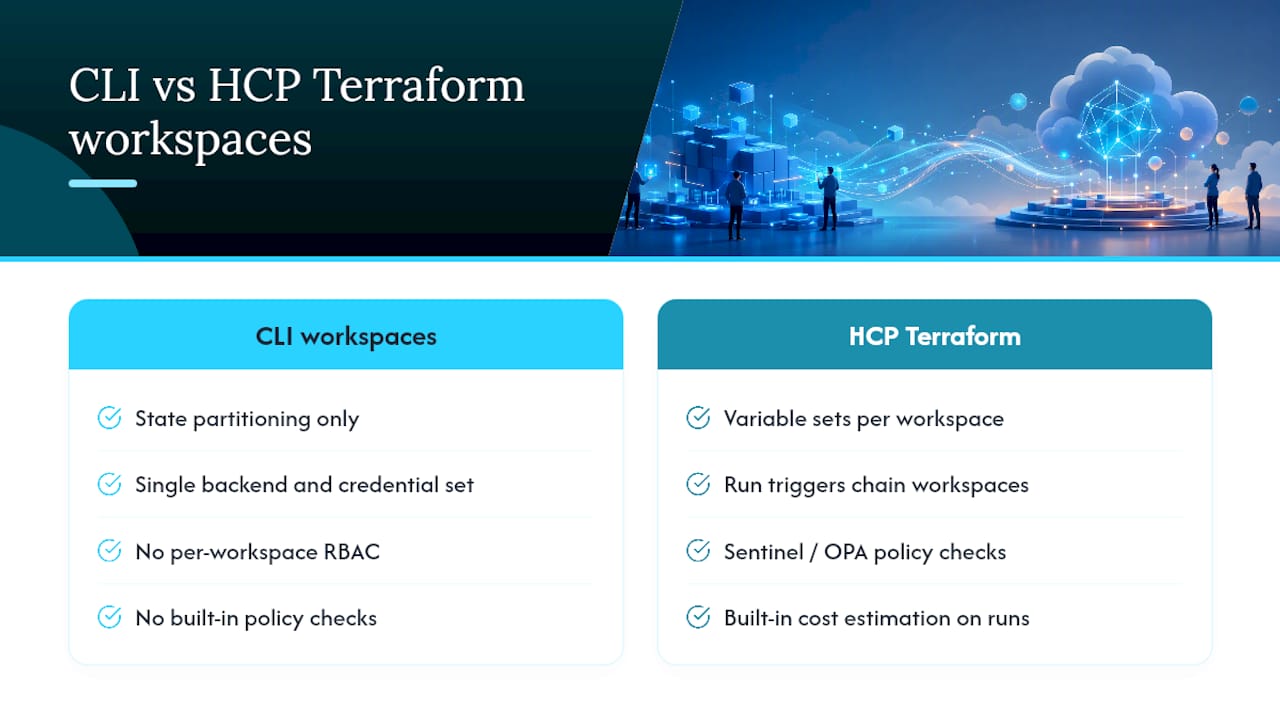
CLI workspaces cover state partitioning. HCP Terraform workspaces add an entire operational layer on top that CLI-only teams eventually reinvent badly by hand.
Each HCP Terraform workspace can carry its own variable sets, run triggers that chain workspaces together (so a network change automatically kicks off a dependent app deployment), and Sentinel or OPA policy checks that block a plan from ever reaching apply if it violates a rule. Teams also get built-in cost estimation on runs, structured run history with full audit trails, and team-based access controls that scope who can queue a plan versus who can approve an apply.
That last piece is the one CLI workspaces categorically cannot offer, as covered in the Scrum for Operations and DevOps Expert Certified – GetVoucher training course. Because CLI workspaces share one backend and one credential set, there’s no native way to say “this person can plan against staging but not apply to prod.” HCP Terraform workspaces solve that by treating each workspace as its own permission boundary, with role-based access tied to the workspace itself rather than the whole backend.
For teams that started with CLI workspaces and outgrew them, migrating to HCP Terraform workspaces is often less disruptive than a full move to separate backends, since the run and state model is philosophically similar. It’s worth evaluating before assuming the only path forward is directory-per-environment.
Fixing the Terraform Workspace Errors You’ll Actually Hit
Most workspace troubleshooting comes down to three recurring situations, and none of them require deep Terraform internals to fix.
“Workspace already exists” on terraform workspace new. Someone already created it, possibly a teammate working locally. Run terraform workspace list first, and use select instead of new if it’s already there.
Delete fails with resources still tracked in state. Terraform refuses to delete a workspace with live resources for good reason. Run terraform destroy while selected on that workspace first, confirm terraform state list comes back empty, then delete.
Plan shows resources you didn’t expect, or a nearly empty plan when you expected changes. This almost always means you’re not on the workspace you think you’re on. Run terraform workspace show before touching anything and compare it against your CI logs.
Backend errors after a workspace name change. Some backends enforce character or length restrictions on workspace names. Keep names lowercase, hyphenated, and free of special characters to sidestep this entirely.
Slow plans as the configuration grows. This is usually a sign the workspace’s scope has outgrown itself. Splitting into smaller, component-scoped workspaces reduces the dependency graph size and speeds up both planning and applying.
None of these are exotic. They’re the same five issues showing up in slightly different clothing, which is exactly why a five-minute pre-apply habit catches most of them before they become incidents.
What Most Terraform Advice Gets Wrong About Workspaces
The conventional advice treats workspaces as a scaling decision: “use workspaces until you outgrow them, then switch to directories.” That framing misses the actual failure mode I see repeatedly, which is organizational, not technical. Teams don’t outgrow workspaces because of resource count. They outgrow them because two different people end up needing two different levels of access to the same backend, and CLI workspaces have no mechanism for that at all.
The bigger blind spot is treating terraform.workspace interpolation as a convenience rather than a liability. Every conditional you add based on the current workspace name is one more place a typo in a dev branch can silently misconfigure production. I’d rather see teams keep that interpolation to naming and tagging only, and push any real behavioral differences between environments into separate .tfvars files instead.
If you take one thing from this: don’t ask “are we too big for workspaces?” Ask “does anyone need permissions that CLI workspaces structurally cannot provide?” That question gets you to the right architecture faster than any headcount threshold ever will.
— James
FAQ
What is the difference between Terraform modules and workspaces?
A module is reusable configuration code you call from elsewhere, while a workspace is a named partition of state for running that same code multiple times. They solve different problems and are commonly used together. Our modules versus workspaces guide breaks down when each one applies.
Why are teams moving away from CLI workspaces?
Teams aren’t abandoning Terraform, but many are moving off CLI workspaces specifically because they offer no access-control boundary between environments. As deployments mature and need separate credentials or stricter approval gates, teams typically shift to separate directories, separate backends, or HCP Terraform workspaces instead.
Can two workspaces share the same backend credentials?
Yes, and that’s actually the core limitation. All CLI workspaces under one backend configuration share the same credentials and lock provider, which is why HashiCorp doesn’t recommend them for environments needing distinct security policies.
How do I reference the current workspace inside my configuration?
Use the ${terraform.workspace} interpolation expression anywhere interpolations are valid in your .tf files. It’s useful for tagging and naming, but heavy conditional logic built on it raises the risk of a mistake affecting multiple environments at once.
What happens to state when I delete a workspace?
Terraform refuses to delete a workspace that still has resources tracked in its state file. You need to run terraform destroy on that workspace first, confirm the state is empty, and then run terraform workspace delete.
Recommended
- Auditing Terraform Workspace State Isolation Before It Bites
- Terraform Workspaces vs Directories: When Each One Makes
- Workspaces vs Modules Terraform: A Decision Guide
Get 500 Battle-Tested DevOps AI Prompts — Free
500 battle-tested, copy-paste AI prompts engineered by a senior systems engineer — every one with fill-in placeholders and safety/back-out notes. Drop your email and it's yours.
- 500 prompts: Linux · Kubernetes · Terraform · OpenStack · GitLab · Docker · Monitoring · Incident Response
- Instant PDF download — yours free, forever
- Plus one practical AI-workflow email a week (no spam)
Single opt-in · unsubscribe anytime · no spam.