
Engineers: Terraform Remote State S3 Checklist and Migration Steps
Risk first guidance for engineers to secure and migrate Terraform remote state. Includes a copy ready S3 backend checklist, step by step migration, and...

Terraform remote state is a state file stored outside your laptop, in a shared backend that tracks the real infrastructure Terraform manages. The single most important practice is pairing that backend with locking and least-privilege access so concurrent writes are prevented. Once it’s configured, terraform init connects to it automatically, and terraform state pull is how you inspect it safely.
TL;DR:
- Locking should be enabled with native S3 locking (
use_lockfile = true) instead of DynamoDB where supported, to reduce infrastructure complexity and costs.- Always verify successful state migration by running
terraform planto ensure no unintended changes and compare outputs with the pre-migration baseline.- Keep sensitive data out of outputs and structure state files by workspace to minimize risks of exposing secrets or cross-environment access.
- Use
terraform state pullfor read-only inspections and avoidterraform state pushunless performing manual recovery, to prevent overwriting teammates’ changes.- Conduct a thorough backend setup review and backup before any migration, and distrust automation to unlock state without human confirmation to prevent accidental data loss.
Table of Contents
- What Terraform Remote State Actually Does
- Choosing a Backend: S3, HCP Terraform, Consul, Azure, and GCS
- How Does State Locking Prevent Concurrent Writes?
- Reading Outputs Safely With terraform_remote_state
- How Do You Migrate From Local State to a Remote Backend?
- Securing Remote State Against Unauthorized Access
- When Should You Force-Unlock or Restore a Backup?
- What Managed Backends Solve That DIY Setups Don’t
- Get a Terraform State Audit Before Your Next Migration
- Where to Read the Official Backend Documentation
- Sources
- FAQ
What Terraform Remote State Actually Does
A backend is two things bolted together: persistent storage for your state file, and (usually) a locking API that prevents two apply operations from colliding. That’s it. Everything else, HCP Terraform’s UI, S3’s durability, Consul’s key-value store, is a variation on those two jobs.
State itself is a JSON snapshot. It maps every resource block in your configuration to the real object it controls, an EC2 instance ID, a database ARN, a Kubernetes namespace. Terraform writes this file on every apply and refreshes it before every plan, which is why a stale or missing state file causes Terraform to lose track of what it owns entirely. Delete the state and Terraform doesn’t delete your infrastructure, but it also has no idea that infrastructure exists anymore.
When you switch from local state to a remote backend, your CLI workflow barely changes on the surface. Under the hood, though, backends handle storage and locking while Terraform commands behave as if the file were still local. A few command habits matter more once state is shared:
- Use
terraform state pullto read the current state as JSON, it’s read-only and safe to run anytime. - Avoid
terraform state pushexcept for genuine manual recovery. It overwrites the remote copy wholesale and can silently erase teammates’ changes if you push a stale local file. - Run
terraform planbefore everyapplyin a shared environment, since someone else’s merge may have changed what “current” means since your last pull.
That last habit sounds obvious until you’re the third person to touch a module in one afternoon and you skip the plan because you’re “just adding a tag.”
Choosing a Backend: S3, HCP Terraform, Consul, Azure, and GCS
Every team ends up choosing between roughly five options, and the right one depends less on features and more on who’s already running what.
HCP Terraform (the managed remote backend) gives you a hosted workflow with run history, policy checks, and a UI for approvals. It’s the least DIY option and the fastest to stand up if you don’t already have infrastructure to host state.
Amazon S3 is the default choice for teams already living in AWS. It’s cheap, durable, and integrates cleanly with IAM. It’s also the backend most engineers reading this article will actually deploy, so here’s a working configuration:
terraform {
  backend "s3" {
    bucket               = "acme-terraform-state"
    key                  = "prod/network/terraform.tfstate"
    region               = "us-east-1"
    workspace_key_prefix = "env"
    use_lockfile         = true
  }
}
The S3 backend documentation lays out these exact arguments: bucket and key locate the file, region is self-explanatory, workspace_key_prefix controls where non-default workspace states land, and use_lockfile enables native S3 locking (more on that shortly).
Consul fits teams already running it as a service mesh or config store on-prem, it’s a solid key-value backend but rarely the first choice for greenfield AWS shops. Azure Blob Storage and Google Cloud Storage are the natural picks if your workloads live on Azure or GCP, offering the same versioning and access-control benefits S3 does, just under a different provider’s IAM model.
Whichever backend you pick, run this checklist before anyone touches production:
- Enable versioning on the storage bucket or container so a bad push doesn’t destroy history.
- Turn on CloudTrail (or the Azure/GCP equivalent) to log every read and write against the state object.
- Scope IAM policies so only specific roles can write to specific key prefixes, not the whole bucket.
How Does State Locking Prevent Concurrent Writes?
Terraform locks state automatically for any operation that could write to it, apply, and sometimes plan, if the backend supports locking. If a second apply starts while the first holds the lock, it waits, then fails with a clear error if the timeout expires rather than silently corrupting the file.
For S3 specifically, you have two options, and they are not equivalent:
- Native S3 locking (
use_lockfile = true), available in Terraform 1.10 and later, uses S3’s own conditional writes to lock without any additional infrastructure. - Legacy DynamoDB locking, the older pattern requiring a separate DynamoDB table with a
LockIDprimary key.
AWS’s own guidance now recommends the native S3 method over DynamoDB where your Terraform version supports it, since it removes an entire piece of infrastructure you’d otherwise have to secure and pay for. If you’re still on DynamoDB locking, migrating is worth planning even though it’s not urgent.
Sometimes a lock gets stuck, a CI job crashes mid-apply, someone kills their terminal. That’s what terraform force-unlock <LOCK_ID> exists for. The command requires the specific lock ID shown in the error message as a safeguard against accidentally unlocking the wrong operation.
Pro Tip: Never build force-unlock into an automated retry script. If a CI pipeline auto-unlocks on timeout, you’ve built a race condition generator. Force-unlock should be a deliberate human action taken after confirming no other apply is actually running.
Reading Outputs Safely With terraform_remote_state
The terraform_remote_state data source lets one configuration read another’s outputs, the standard way to share a VPC ID from a networking stack with an application stack without hardcoding values. It looks like this:
data "terraform_remote_state" "network" {
  backend = "s3"
  config = {
    bucket = "acme-terraform-state"
    key    = "prod/network/terraform.tfstate"
    region = "us-east-1"
  }
}

resource "aws_instance" "app" {
  subnet_id = data.terraform_remote_state.network.outputs.subnet_id
}
Two things trip people up here. First, only root module outputs are exposed this way. If a value lives inside a nested module, you have to explicitly pass it through to a root-level output before another configuration can read it. Second, and more important: reading remote state outputs requires read access to the entire state snapshot, not just the specific output you want. That snapshot can contain database passwords, API keys, or other sensitive attributes stored in plain text.
Practical guidance for keeping this safe:
- Keep sensitive values out of outputs entirely where possible, generate secrets through a secrets manager instead of passing them through state.
- Structure state files by workspace so a team reading one environment’s outputs can’t accidentally access another’s.
- Where your platform supports it, use a narrower API instead. HCP Terraform’s
tfe_outputsdata source, for example, exposes only outputs rather than the full snapshot, a meaningfully smaller blast radius thanterraform_remote_state.
If you’re passing a lot of data between configurations, it’s worth reading up on structuring that sharing without creating a mess before your dependency graph becomes unmanageable.
How Do You Migrate From Local State to a Remote Backend?
Migrating state is one of those tasks that’s simple ninety percent of the time and genuinely stressful the other ten, usually because someone skipped verification. Here’s the sequence that avoids the stressful version.
- Back up first. Copy
terraform.tfstatesomewhere outside your working directory. This takes ten seconds and has saved more engineers than any other step on this list. - Freeze changes. Tell your team no one applies anything until migration is confirmed complete. A concurrent apply during migration is how state gets split across two locations.
- Record current outputs. Run
terraform outputand save the result. You’ll compare against this after migration. - Add the backend block to your configuration (the S3 example above, or your chosen backend’s equivalent).
- Run
terraform init. Terraform detects the backend change and prompts to migrate existing state into it, confirm yes. - Verify the file landed. Check the bucket or backend directly, don’t just trust the CLI output.
- Run
terraform plan. It should show no changes if migration succeeded cleanly. Any unexpected diff means something didn’t map correctly. - Compare outputs. Run
terraform outputagain and diff it against your step 3 baseline.
For anything beyond a small module, run this dry migration in a staging environment first and capture terraform show -json output as a comparison artifact. Storing that JSON in your CI system gives you an audit trail if a discrepancy surfaces days later rather than immediately.
Pro Tip: If a backend write fails mid-migration, Terraform falls back to writing state locally rather than losing it. That local copy is your safety net, but you still have to manually push it once the backend issue is resolved, so don’t delete it until you’ve confirmed the remote copy is authoritative.
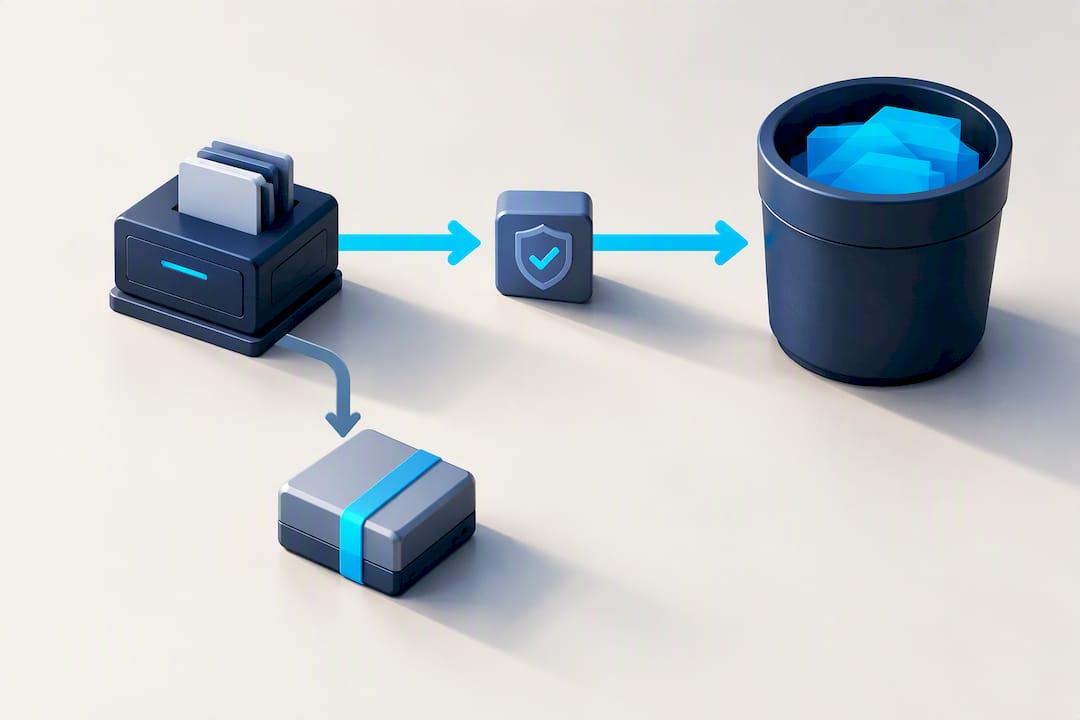
Securing Remote State Against Unauthorized Access
State files are secrets containers whether you treat them that way or not. Hardening access is less about exotic tooling and more about discipline around who and what can write to them.
Start with role separation. CI pipelines should hold write access for production applies; humans should generally have read access only, with a narrow “break-glass” admin role reserved for genuine emergencies. AWS’s guidance frames this as automation being the primary writer, with people operating through pipelines rather than direct CLI access to production backends.
Beyond roles, a short hardening checklist covers most of the real risk:
- Enable encryption at rest on the storage bucket or container.
- Turn on versioning so any bad write is recoverable.
- Wire up CloudTrail or equivalent audit logging and actually review it, logging that nobody reads doesn’t help you.
- Keep separate backends per environment, a compromised dev bucket should never expose production state.
- Watch for anomalous
force-unlockevents specifically, they’re rare enough in normal operation that a spike is worth investigating.
Teams handling especially sensitive state sometimes consider client-side encryption before the file reaches the backend, which may be useful for regulated workloads.
When Should You Force-Unlock or Restore a Backup?
Not every stuck state file needs the same fix, and picking the wrong one turns a five-minute problem into a half-day recovery.
- Lock stuck, no apply actually running? Confirm nobody’s mid-operation, then
force-unlockwith the exact lock ID from the error. - State shows resources that don’t match reality? Don’t force-unlock, pull the state, diff it against a known-good backup, and run
planagainst the backup copy before touching the live backend. - Plan output looks wrong after a lock issue? Pause automation entirely rather than pushing a fix under pressure. A rushed
state pushagainst ambiguous data is how small problems become outages.
Before escalating, collect the lock ID, the last known-good state backup, recent CI logs, and the specific plan diff that triggered concern. That artifact set turns a vague “state is broken” report into something a Terraform / IaC Audit engagement can actually diagnose quickly rather than starting from zero.
Pro Tip: Never run state push as a first response to a discrepancy. Verify against a backup locally first, pushing before verification is the single most common way teams turn a recoverable lock issue into actual data loss.
What Managed Backends Solve That DIY Setups Don’t
Managed backends like HCP Terraform trade a subscription cost for governance features and reduced operational load, worthwhile for teams without dedicated platform engineers to babysit locking and access policy. Teams with existing ops capacity often get more value from an S3 setup they control end to end. Either way, AI-assisted migration planning can flag risky resources before a cutover, which is where a second set of eyes earns its keep.
— James
Get a Terraform State Audit Before Your Next Migration
Most state disasters aren’t caused by bad backends, they’re caused by migrations run without a checklist and locking policies nobody documented. Devopsaitoolkit’s Terraform / IaC Audit is a fixed-price $250 engagement built around exactly the gaps this article covers: reviewing your current backend setup, testing your backup and restore path, and writing CI gating rules so a stuck lock never turns into a 2 a.m. page.
If you’re mid-migration right now and want a second opinion before you flip production traffic, that audit typically returns a migration checklist, verified restore steps, and specific IAM tightening recommendations you can act on the same week. For teams that want prompt libraries and troubleshooting playbooks on hand for the next incident, the Pro plan runs $19 a month or $180 a year. Book the audit through the work-with-me page and get a second set of eyes on your backend before something forces the issue.
Where to Read the Official Backend Documentation
- Terraform’s own remote state overview
- S3 backend argument reference
- terraform_remote_state security notes
- Structuring backends that scale
Sources
- State: Remote Storage | Terraform
- S3 backend documentation | Terraform
- Backend best practices
- The terraform_remote_state Data Source | Terraform
FAQ
How do I unlock Terraform state?
Run terraform force-unlock <LOCK_ID> using the exact lock ID shown in the error message. Confirm no other apply or plan is genuinely running first, since force-unlock is meant for stuck locks, not for bypassing an active operation.
Is terraform_remote_state a security risk?
It can be, since reading remote state outputs requires read access to the full state snapshot, which may contain sensitive values beyond the specific output you need. Structuring state by workspace and using narrower output APIs where available reduces that exposure.
What’s the difference between S3 native locking and DynamoDB locking?
Native S3 locking (use_lockfile = true) uses S3’s conditional writes directly and requires no extra infrastructure, while DynamoDB locking needs a separate table with a LockID key. AWS recommends the native S3 method where your Terraform version supports it.
How do I verify a state migration succeeded?
Run terraform plan immediately after migrating, it should show zero changes if the migration mapped correctly. Compare terraform output values against a pre-migration baseline as a second check.
What does Devopsaitoolkit charge for a Terraform state audit?
The Terraform / IaC Audit is a fixed $250 one-off engagement covering backend review, lock and access policy checks, and migration verification steps.
Recommended
- Using AI to Plan a Safe Terraform State Migration
- Terraform State Recovery: 3 Decision Rules and a Compact
- Structuring Terraform State and Remote Backends That Scale
- Terraform Error: Failed to Acquire State Lock in CI
Get 500 Battle-Tested DevOps AI Prompts — Free
500 battle-tested, copy-paste AI prompts engineered by a senior systems engineer — every one with fill-in placeholders and safety/back-out notes. Drop your email and it's yours.
- 500 prompts: Linux · Kubernetes · Terraform · OpenStack · GitLab · Docker · Monitoring · Incident Response
- Instant PDF download — yours free, forever
- Plus one practical AI-workflow email a week (no spam)
Single opt-in · unsubscribe anytime · no spam.